Managing members
The Members module is available to the president and the manager.
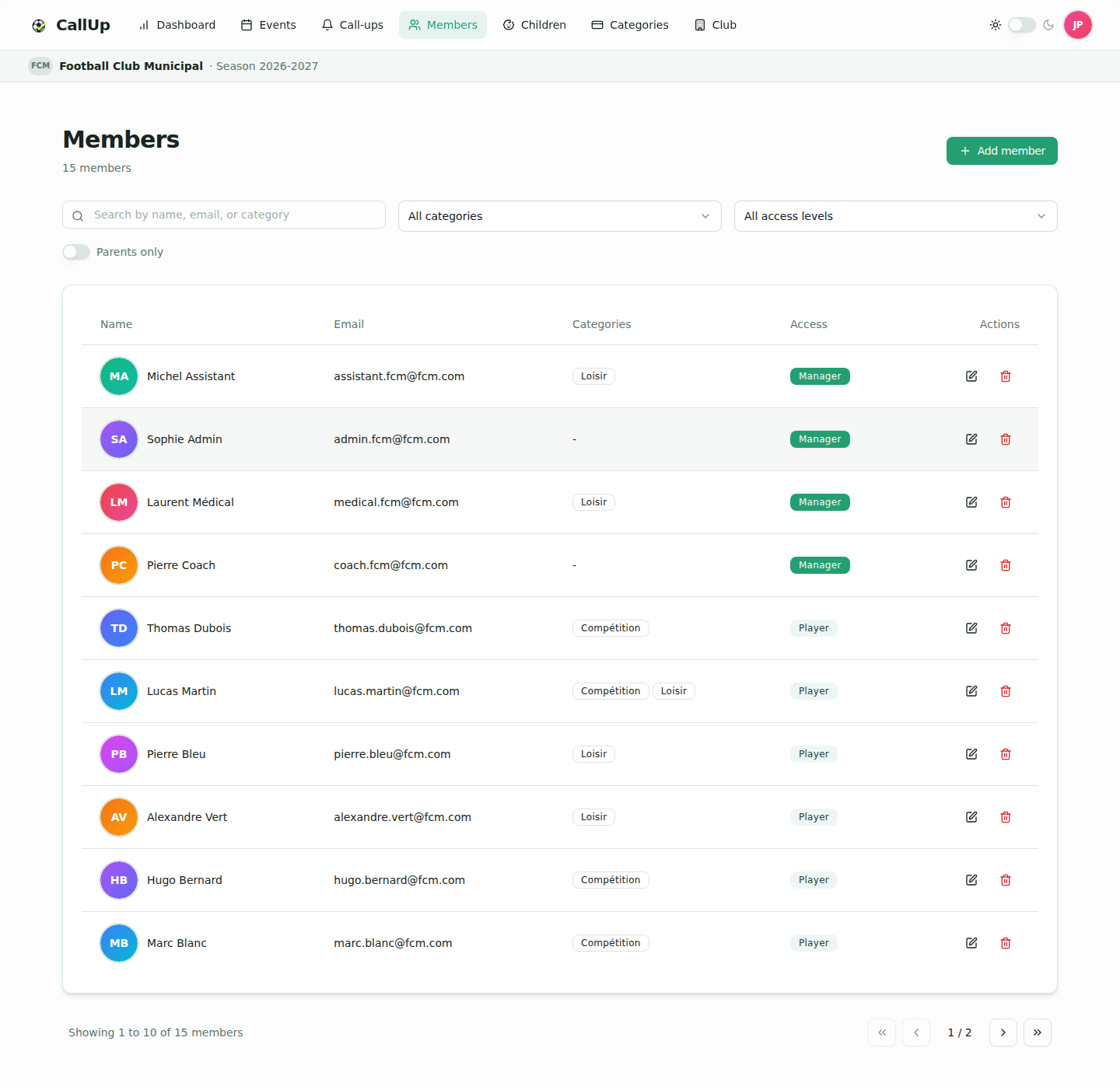
Member list
The list shows each member's name, email, categories and access. To find someone:
- Search by name, email or category;
- "Filter by category";
- "Filter by access" (President, Manager, Player);
- "Parents only" toggle.
Each row offers Edit and Delete actions.
Adding a member
Click "Add member", then fill in:
- First name, Last name and Email (the email is the login);
- Access: Player or Manager. Access defines permissions in the app; it does not set the category. Only the president can create a manager;
- Categories: one or more member categories. They determine event eligibility. Required for a player; a manager can also have a category if they play;
- Profile photo (optional);
- Parent (switch): "Allow this member to be linked as a parent of a child in the club".
Then click "Add member". An account is created automatically and the credentials are sent to the new member by email.
The "Parent" status is set when adding the member and can be changed later from the member's edit page (see below). It is not an access level: any member (President, Manager or Player) can be a parent. See Managing child profiles.
:::note Production On the production environment, adding a billable member is refused once the subscription's capacity is reached. The president and non-member parents are not counted; child profiles are. The president can add an extension from the Subscription page. :::
Create your categories before adding members in bulk.
Editing a member
From the list, click Edit to update:
- First name, Last name, Email and Profile photo;
- Access: Player, Manager or President (only the president can grant Manager and President access). Setting a new president shows an information message on save, with no confirmation step; a president has no category, so theirs are removed. A president's access cannot be changed from this form: contact CallUp support;
- Categories;
- Parent: "Allow this member to be linked as a parent of a child in the club".
Phone and address are not edited here: each member fills them in from their own settings.
Deleting a member
"Delete" asks for confirmation, then deactivates the member:
- they can no longer log in and no longer appear in lists or among participants;
- their history is kept (past events, call-ups, line-ups);
- there is no button to reactivate a deleted member.
A manager can only delete players and parents. Nobody can delete another president; a president's access cannot be changed from the app: contact CallUp support.
Categorizing a member
Member categories determine event eligibility: a member is invited to the events that target at least one of their categories.
- A player without a category is pending membership: they are invited to no event, and the dashboard flags them in the "To do" block.
- A parent can have a category for their own participation while managing child profiles.
Permissions by role
| Action | President | Manager |
|---|---|---|
| View members | ✅ | ✅ |
| Add a player | ✅ | ✅ |
| Add a manager | ✅ | ❌ |
| Edit a member, their categories, the Parent status | ✅ | ✅ (except managers and the president) |
| Grant Manager or President access | ✅ | ❌ |
| Delete a member (deactivation) | ✅ (except another president) | ✅ (players and parents only) |