Managing events
The Events module is writable by the president and the manager. Players and parents see the events that concern them and answer them there.
Event types
- Match;
- Training;
- Other (meeting, club event, etc.).
Creating an event
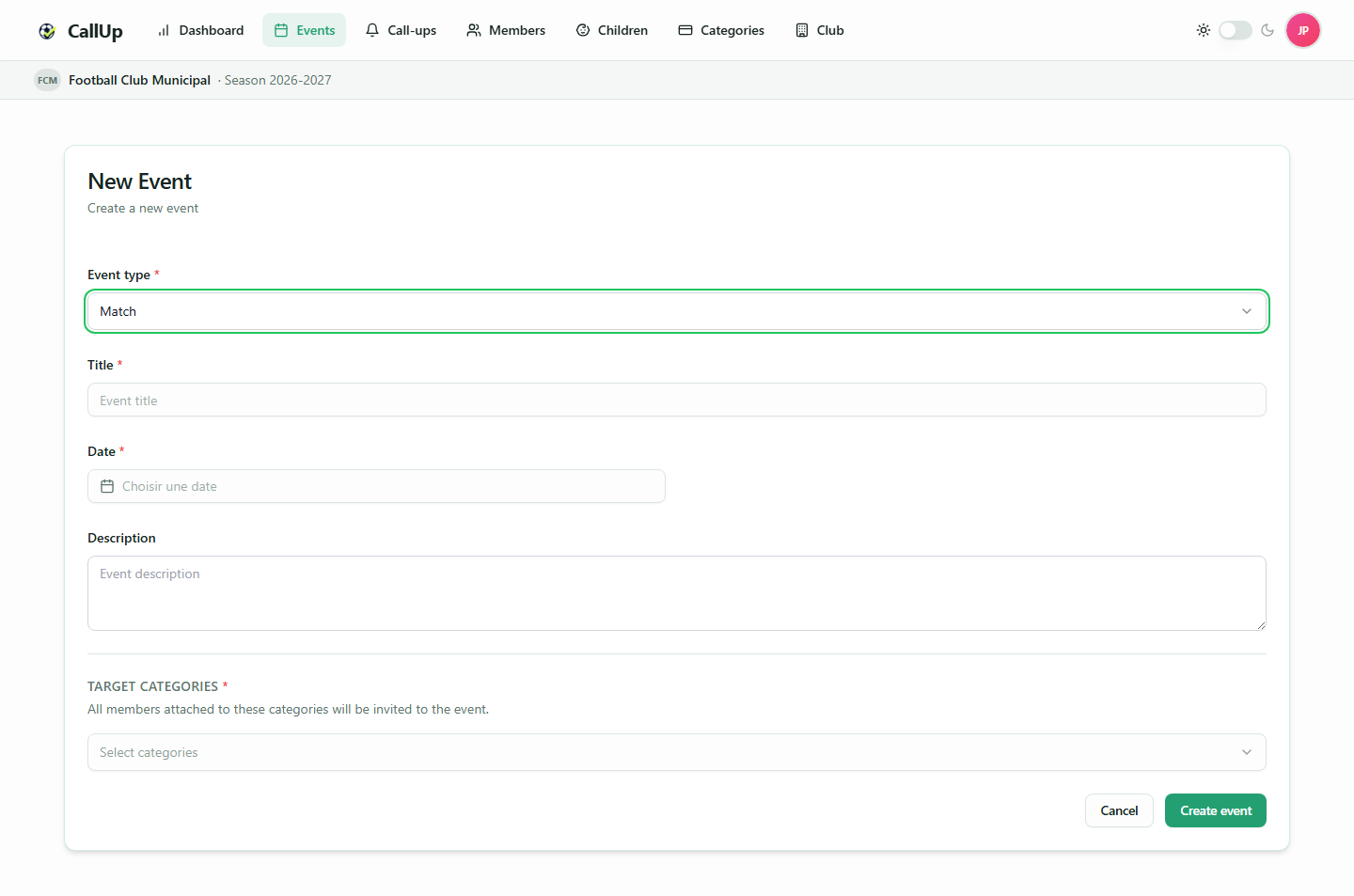
In Events, click "Create an event", then fill in:
- Title, Event type and Date;
- for a training session or another event: Time and Location;
- Description (optional);
- Target categories (at least one, required).
All members (and children) attached to the targeted categories are invited and receive a push notification.
For a match, only the date is asked for: the meeting time, the opponent and the ground are entered in the call-up.
Category targeting
- Only members and children attached to at least one targeted category are eligible.
- Example 1: a match restricted to the "COMPETITION" category.
- Example 2: a training open to the "LEISURE" and "COMPETITION" categories (select both).
| Context | Targeted categories | Result |
|---|---|---|
| Official match | COMPETITION | Members of the COMPETITION category |
| Open training | LEISURE + COMPETITION | Members of LEISURE or COMPETITION |
| Cadets match | CADETS | Members of the CADETS category |
When creating a call-up, only participants who answered present to the event are proposed.
List, editing and deleting
- The event list has a search box, a date filter (Upcoming by default; Past for older events) and an event type filter. For each event, it shows the present count (X/Y present) and a details button.
- The president and the manager can edit or delete an event from its menu, or via the Edit button at the top of the event page. Deleting asks for confirmation.
- Changing an event's target categories automatically updates the participants: members and children who become eligible are added, those who are no longer eligible are removed. Answers from people who remain eligible are kept.
- An event's page shows its details and the list of participants with their answers; the header of that list shows the present count (X/Y present).
- The page also has a "Call-ups" card listing that event's call-ups. The president and the manager get a "Create a call-up" button there.
Answering an event
Every event in the list shows Present and Absent buttons, except on events you created yourself; you can also answer from the dashboard. The answer is saved immediately and can be changed at any time. A parent answers for their child from the child's tab.