Understanding the Dashboard
The dashboard is your entry point to CallUp. It presents a summary tailored to your role and provides quick access to essential actions.
Overall layout
The dashboard opens with a "Hello [first name]" greeting and is organised into three clear blocks depending on your role. A club banner (logo, club name and current season) is shown under the application header for every role.
Today's events count as upcoming: a match remains listed on the dashboard on match day.
Dashboard — President and Manager
The president and the manager see the same dashboard. Two buttons at the top let you Add a member and Create an event.
Until the club is linked to its official listing, the president sees a "Find your club" banner at the top of the dashboard, with a "Find my club" button (see Managing club information).
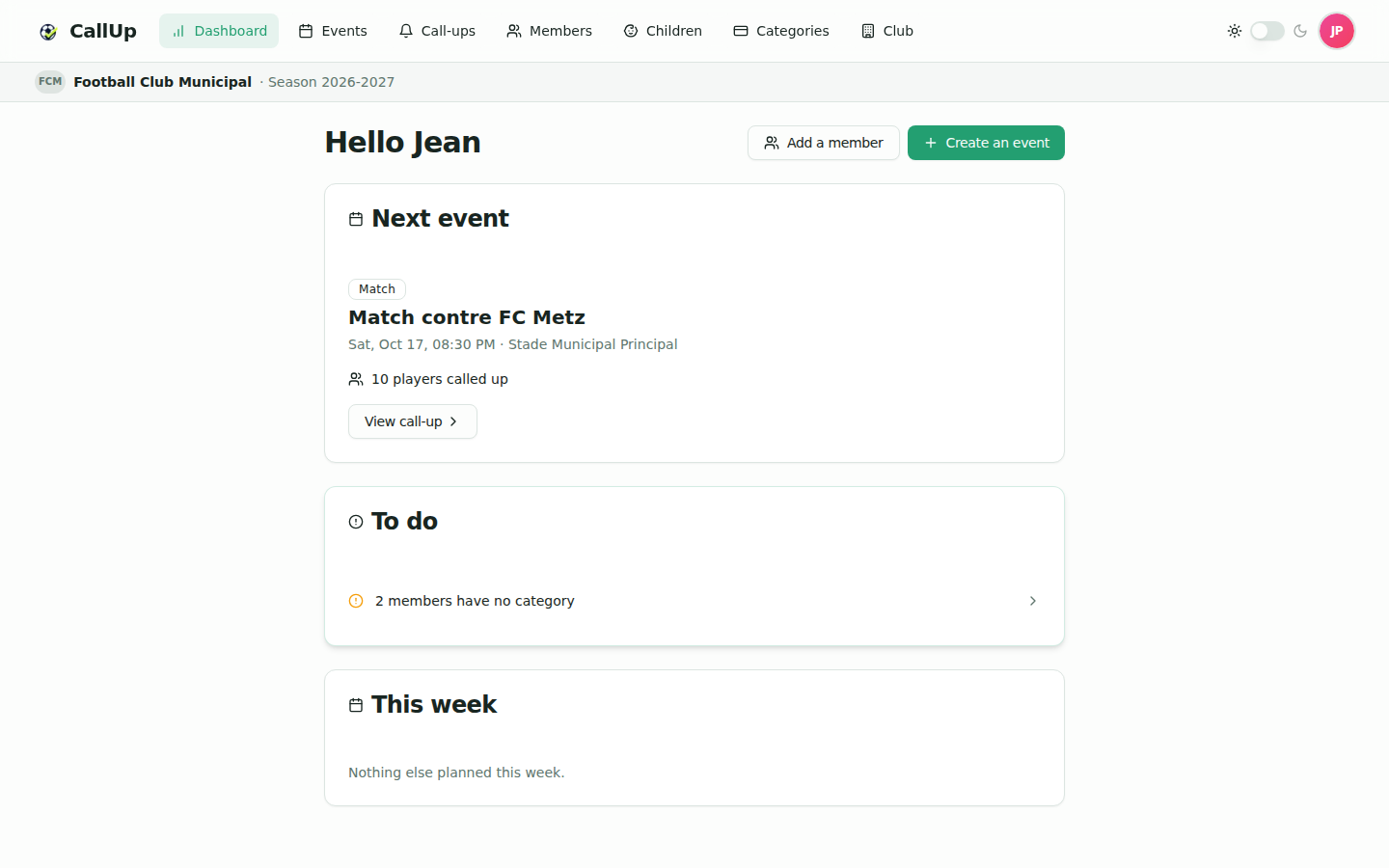
1. Next event
- Type and title;
- a response bar: X present · Y absent · Z no reply;
- when a call-up exists, the number of players called up replaces the response bar;
- View event or View call-up button.
2. To do
A plain list of items that need action, each with a direct link:
- players who have not answered the next event or an event in the next 7 days (only events without a call-up);
- members without a category (pending membership, not eligible for events).
When there is nothing to handle, the message "Everything is in order" is shown.
3. This week
Agenda of the next 7 days (excluding the event already highlighted), with the X/Y present count or the number of players called up.
Statistics, club health, role distribution, discipline and recent activity are no longer shown on the dashboard.
Dashboard — Player
The player sees three elements focused on what concerns them.
1. Main card
- You're called up: as soon as you are on a call-up, it becomes the main card (opponent, date, location with a Directions button, a "You're the captain" mention when applicable, and a View line-up button). Being called up counts as confirming your presence, so there are no response buttons.
- Your next event: otherwise, your next event, with the question "Will you be there?" and Present / Absent buttons until you answer.
- Nothing planned for now: if nothing concerns you, you will be notified as soon as an event or call-up does.
2. To confirm
Events without a call-up that you have not answered yet, with Present / Absent buttons.
3. This week
Your events and call-ups for the next 7 days, with your status (Called up, Present, Absent or To confirm). A player only sees what concerns them.
Dashboard — Parent
If you're marked as a parent, tabs appear at the top of the Events, Call-ups and dashboard pages:
- Me: your own events (if you are also a member);
- one tab per child, labelled with the child's full name: their events and call-ups.
The dashboard follows the selected tab
Picking a child's tab switches the dashboard to that child's dashboard: you see their call-up or next event, the events they need to confirm and their week, just like a player. The Me tab brings you back to your own information.
Actions
- Answer Present / Absent for your child, from the dashboard on the child's tab or from Events;
- View your child's call-up and line-up, and add the call-up to your calendar (ICS file);
- Receive notifications on behalf of your child ("For Léa — …").
Preferences and customization
The dashboard itself cannot be configured. The available settings are:
- Light or dark theme: sun / moon toggle in the header;
- Profile (first name, last name, email, phone, address, photo) and password: Settings module;
- Push notifications: permission granted to your browser or phone;
- Language: your browser's language (French or English).
Best practices
- Consult regularly: at least once a week during active periods
- Act quickly: respond to events as soon as they're created
- Plan ahead: manage formations at least 24-48h before matches
- Clear your to-dos: handle the items in the "To do" block (non-respondents, members without a category)
Dashboard Troubleshooting
I don't see a module
Check your role and permissions — some modules are hidden depending on your role.
My data is not up to date
Reload the page or log out and log back in.
Too much information displayed
The dashboard is limited to what concerns you (next event, to-dos, the week ahead). Use the dedicated modules to filter or sort further.